Speeding Up Kitchen Rush Hour
Overview
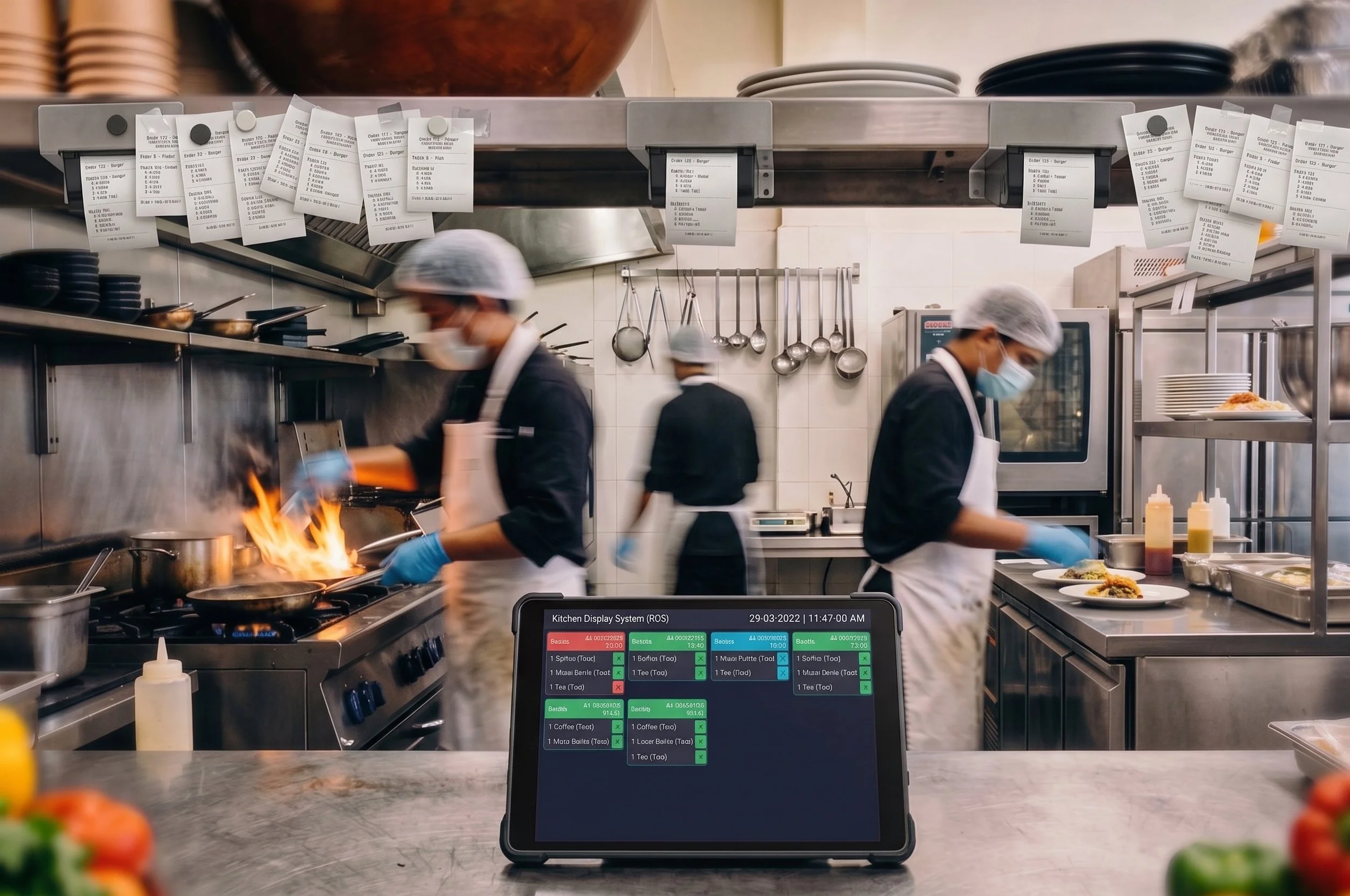
Compass Group's Kitchen Display System (KDS) is where kitchen operators see and manage incoming orders in real time. This project focused on the Current Orders tab — specifically, how operators start and finish the orders queued up during a rush.
Problem
Operators managing the Current Orders tab had to start each order individually — one tap per ticket, one printed ticket per order. During busy periods, kitchens processing dozens of orders per time slot were stuck repeating the same single action over and over, adding friction exactly when speed mattered most. The existing bulk print option didn't solve this — it printed in bulk, but couldn't scope to a specific time interval, so it didn't match how operators actually wanted to work through a rush.
My role
I was the product designer on this project. On one of our site visits, we observed that batch processing orders was a real pain point for operators. A bulk print option already existed, but it didn't give operators control to choose all orders within a specific time interval — when an operator starts an order, it prints a ticket for that individual order, which the operator or chef then uses at their station. I interviewed the operators experiencing this friction and pitched prototypes built around two different approaches to solving it.
Research
Site visits and interviews with operators experiencing this friction confirmed the pattern, and a deeper conversation with a high-volume operator (a 2,400-cover venue) sharpened it further: operators don't think in individual tickets, or in arbitrary batch sizes — they think in waves, by time slot. A single slot could contain anywhere from 10 to 20 orders, and operators wanted to start, work through, and clear an entire slot before moving to the next one. From there, I prototyped two different approaches and pitched both to validate which model actually fit how operators work.
We also ran the direction by an internal focus group of former operators and site managers to pressure-test it against real-world experience before committing.
Two directions we considered
Option 1 — Start by queue size:
An adaptive button that capped how many orders could be started at once, based on how many were pending, tied to a fixed 30-minute window.
We moved away from this — it didn't map to how operators actually work. A hard cap of 6 broke down against real venues where a single time slot held 10–20 orders, and a fixed 30-minute window didn't match how operators mentally organized their shift.
Option 2 — Start by time slot:
A dropdown to select any time slot — including future ones — paired with a single "Start all orders" action.
This matched the research directly. Operators think in waves: start all the 10:30 orders, clear them, move to 10:40. A two-step flow (select a slot, then tap start) also gave us a built-in confirmation step, avoiding the need for a swipe gesture or a separate modal.
Options Made
With an upper limit on number of orders that can be started

Start all orders in a time slot - With swipe to start option
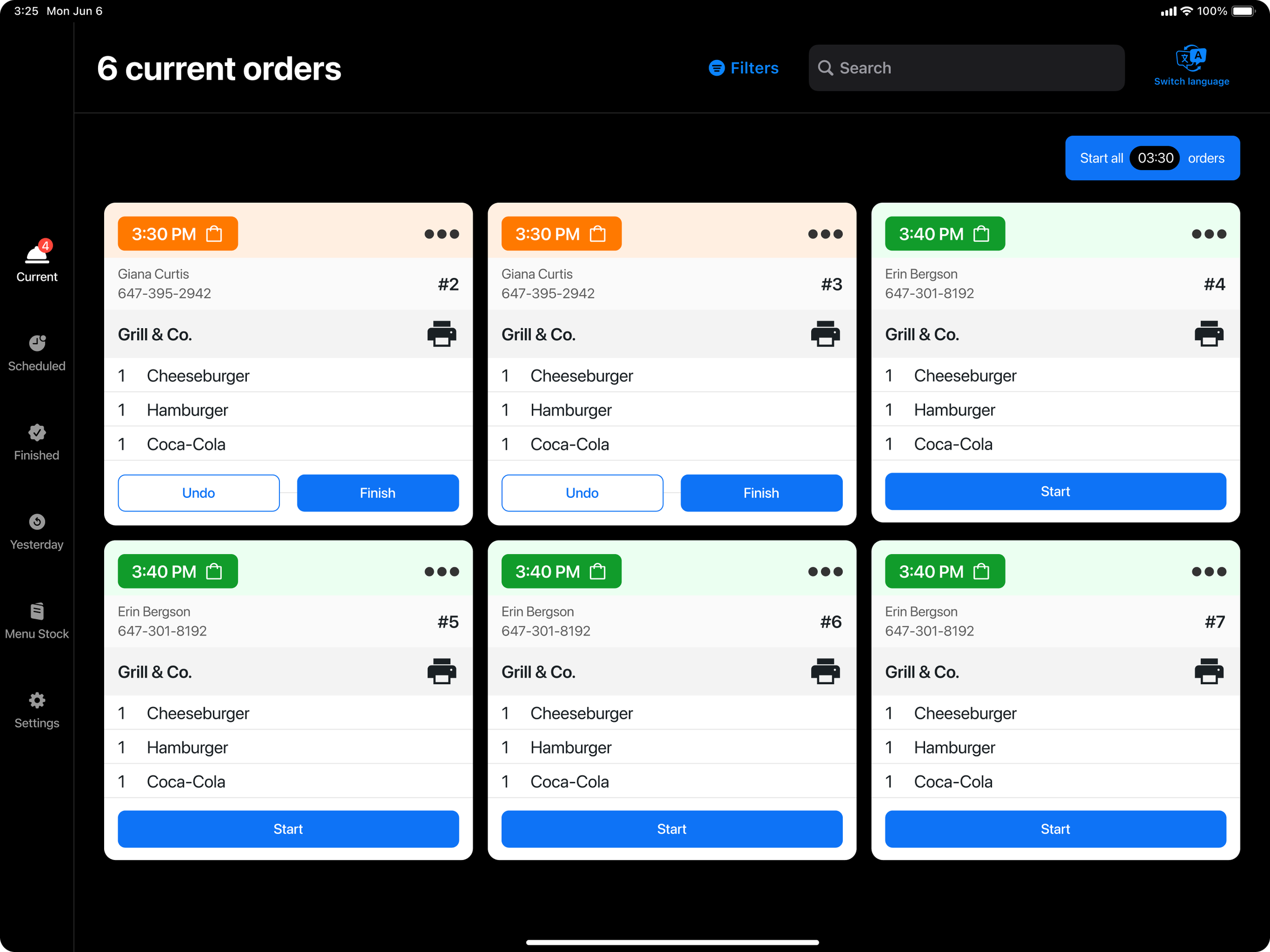
Single button for Start all and Finish all.
Preferred Solution
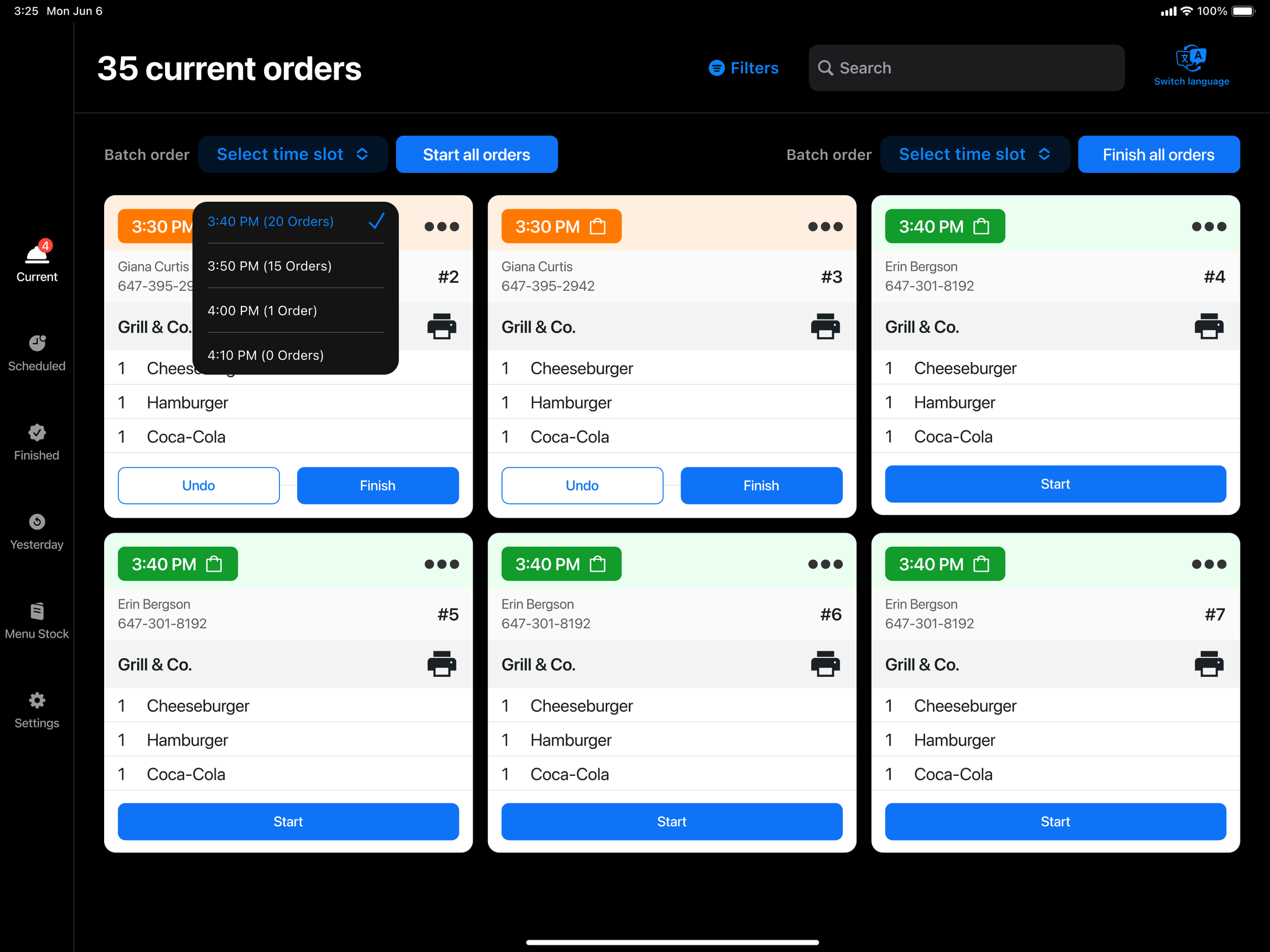
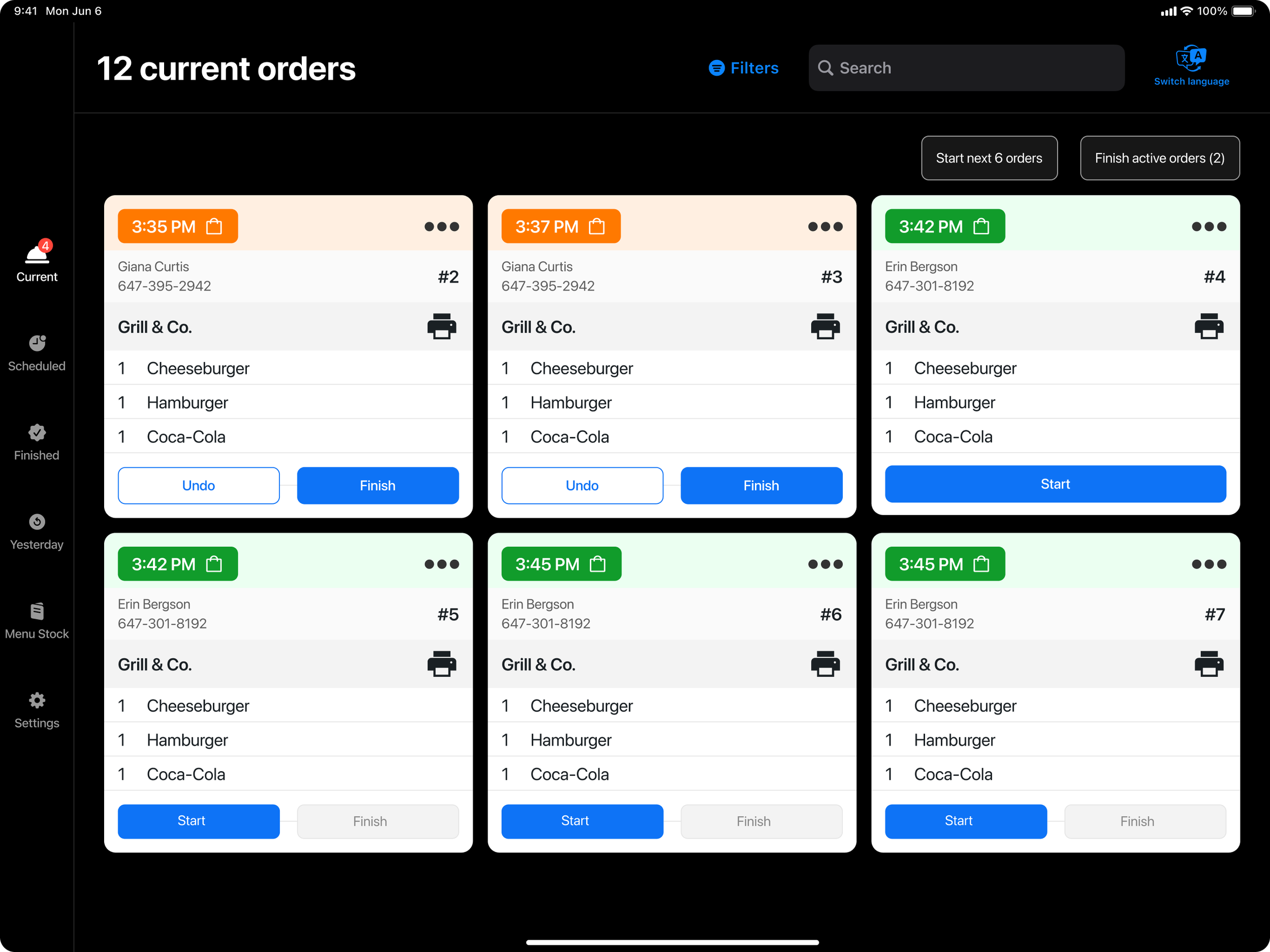
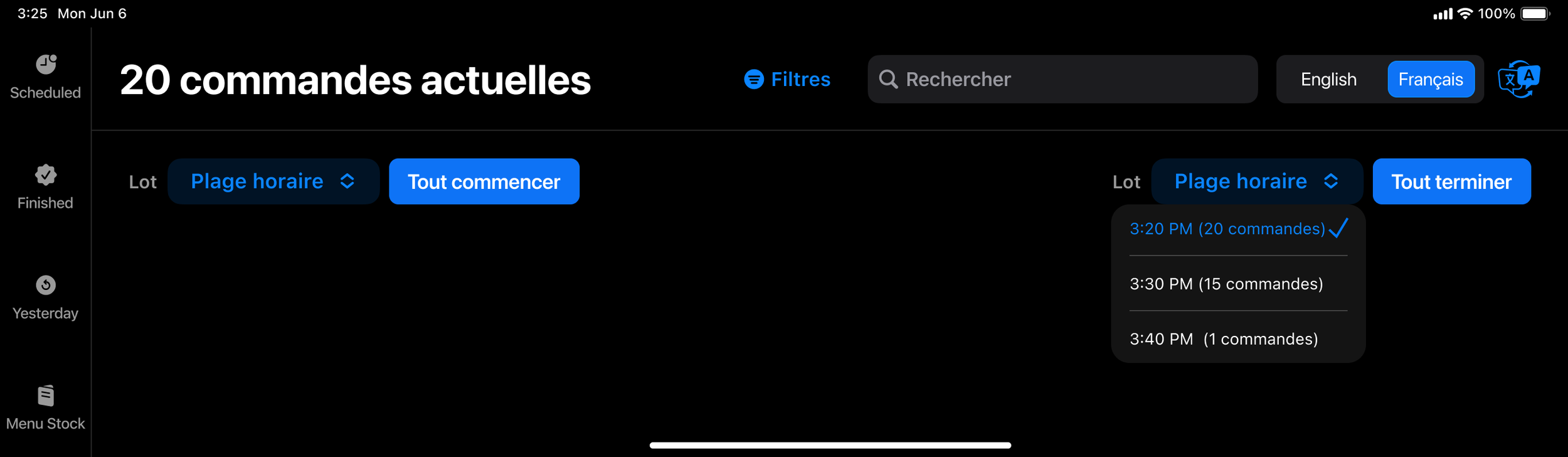
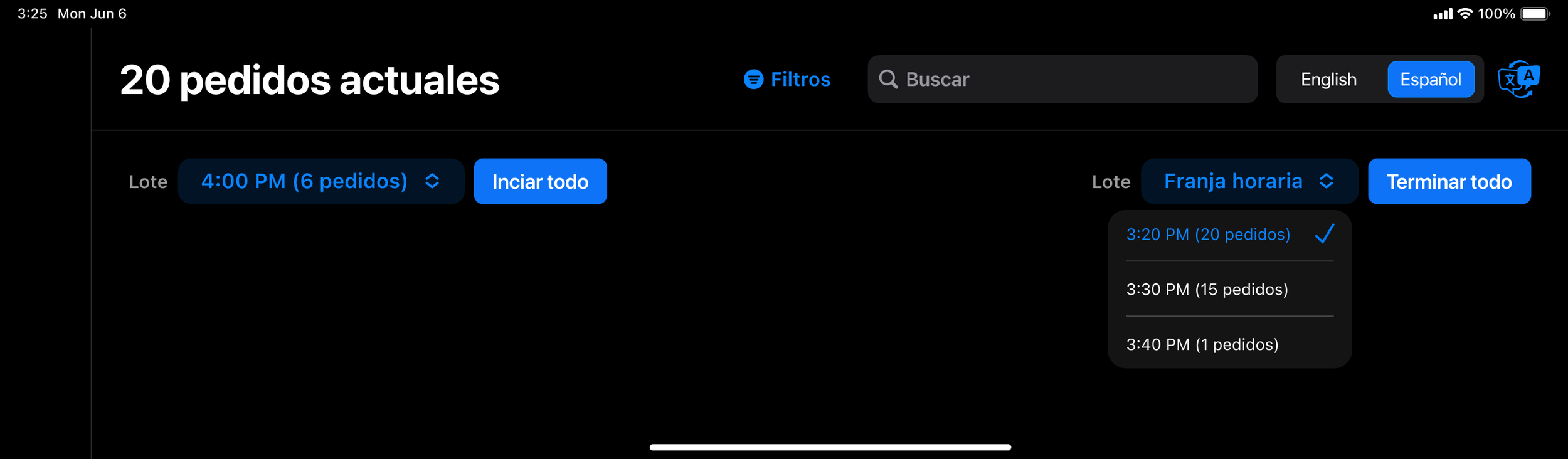
Two controls sit in the header of the Current Orders tab - Start all
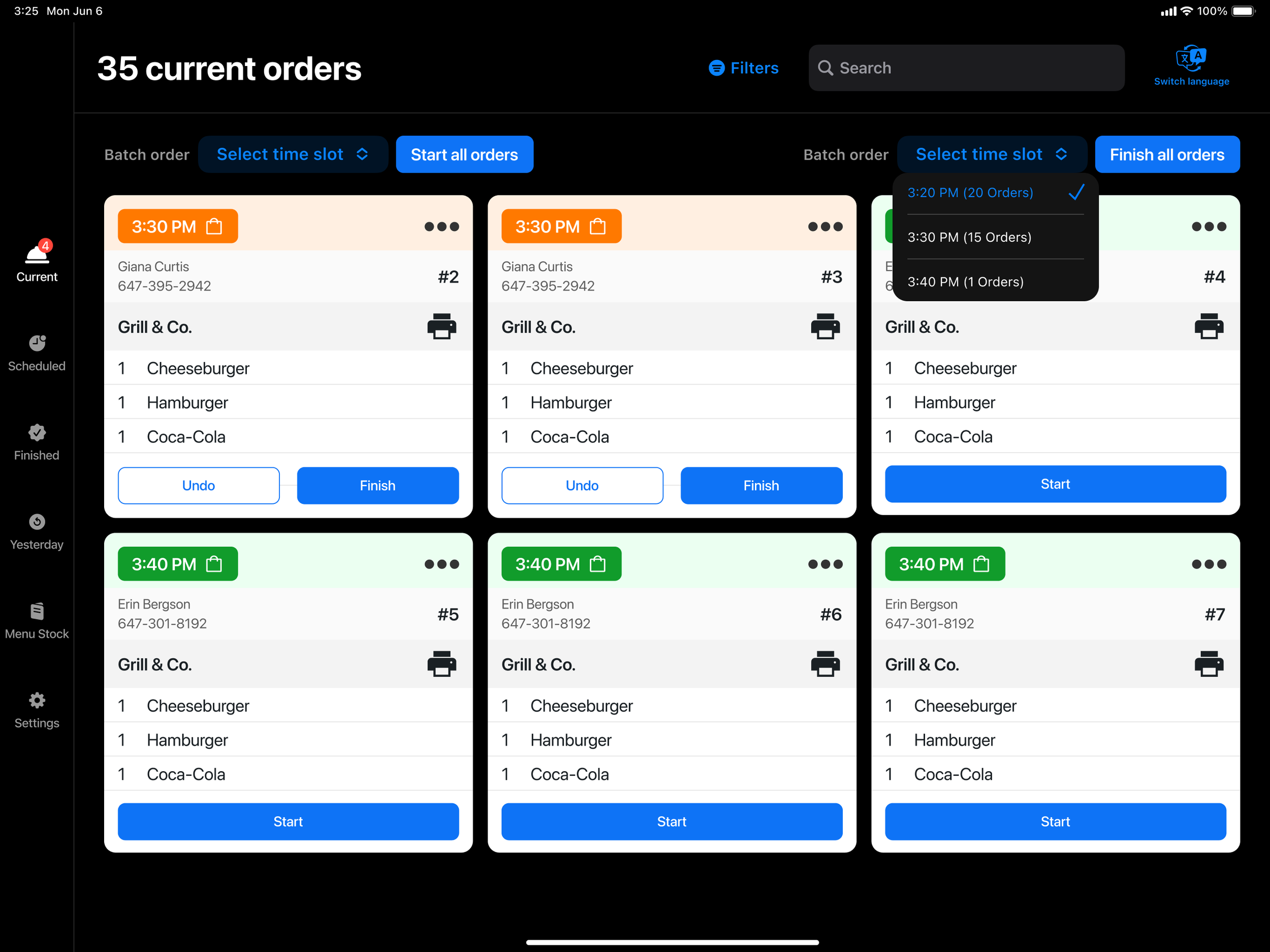
Finish all
Select time slot
A dropdown listing every available time slot with its order count (e.g. "3:40 PM · 20 orders"). It defaults to empty so nothing starts by accident.
Start all orders
Fires once a slot is selected, starting every pending order in that slot at once.
Finish all orders
A separate control for bulk-finishing the current in-progress batch.
Individual, card-level starting remains available for operators who want to work order by order instead.
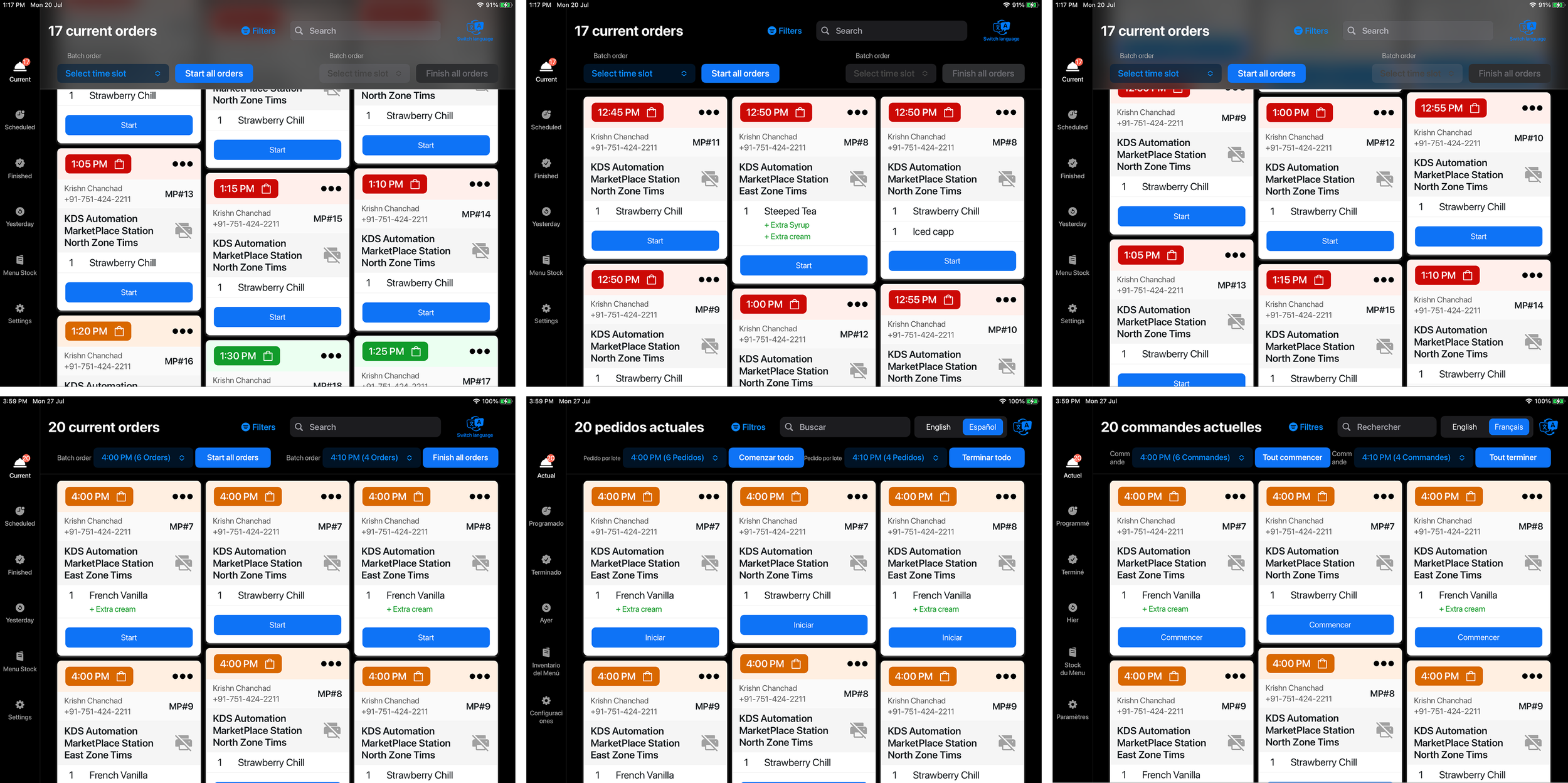
Key decisions
Future slots can start before the current one finishes. Operators intentionally get ahead — starting the 7:40 batch at 7:25 so tickets are printing and organized before the 7:00 batch wraps up. Locking the next slot until the current one finished would have broken a workflow operators already relied on.
A two-step flow instead of a swipe or modal. Selecting a slot, then tapping to start, acts as its own confirmation — one less interaction pattern to learn, and one less way to trigger something by accident.
Colour coding for slot state (orange = in progress, green = pending) so operators can read multiple simultaneous batches at a glance.
Inline, per-card undo extends the existing undo pattern rather than introducing a new one — each bulk-started card gets its own undo, independent of the rest of the batch.
Scoped to Time Due display only. Countdown-based tickets are relative to each order's placement time, so the same time-slot grouping would shift every minute mid-rush — not stable enough to batch against. Rather than force a workaround, we scoped the pilot to Time Due sites and disabled the toggle — with explanatory copy — wherever Countdown is active.
Also worth noting:
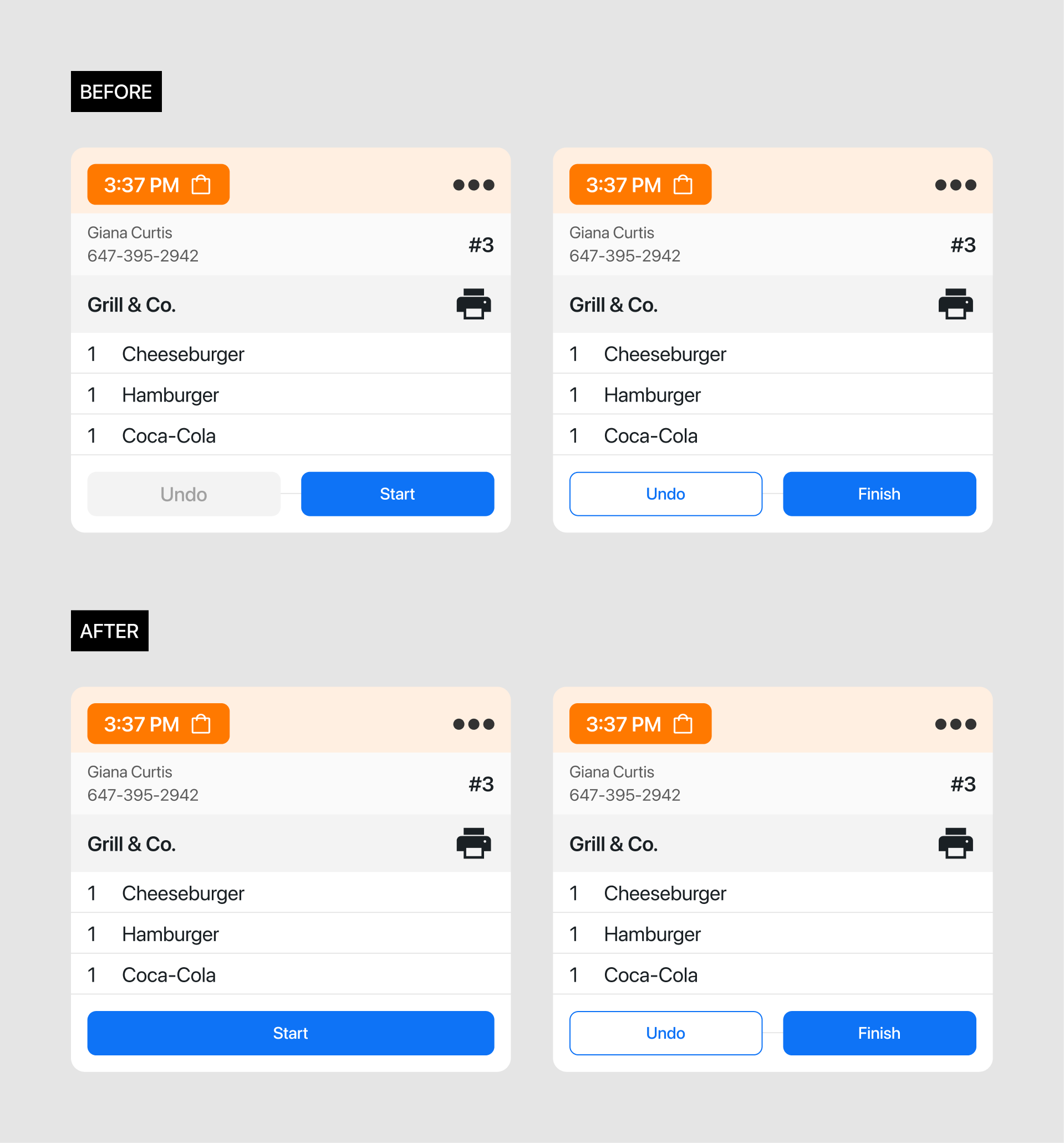
While designing this flow, I noticed the "Start" and "Finish" buttons looked identical regardless of order status, making it hard to scan a long list at a glance. I resized the buttons and changed "Undo" to appear only once an order starts, freeing up space for a clearer "Start order" button — a small fix, but it made the list far easier to read during a rush.
Risk and Mitigation
Every risk we flagged had a deliberate answer built into the design rather than left to chance:
Operator starts the wrong time slot
Two-step selection makes the slot explicit before confirming
Multiple in-progress slots creates confusion
Colour coding distinguishes slot states at a glance
Operator finishes the wrong batch
"Finish" scoped to in-progress orders only, with undo on both actions
Toast conflicts with device gesture zone
Toast anchored above the home indicator safe area
Operator on Countdown can't find the feature
Disabled toggle with helper text pointing to the right setting
French
Spanish